
System Documentation
The main page for managing applications appears after you first log in.
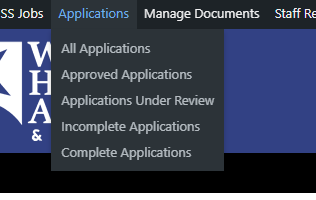
Links for managing applications and cases are in your top menu (screenshot below)
- All Applications – Lists all submitted applications.
- Approved Applications – Only approved applications are listed.
- Applications Under Review – Lists applications that are pending approval or disapproval.
- Incomplete Applications – Lists applications that must be updated before review.
- Complete Applications – Lists applications that are pending review.
Options to approve or edit an application or case* are shown below.
- If an applicant has created an account, their username will be shown under the User column heading.
- Current approval status is displayed in this column.
- Click “Files” to view or upload files related to the case.
- Click “Edit” to make changes to the application. (If the only changes are to uploaded files, use the “Files” link instead.)

* Upon approval, an application becomes a case.
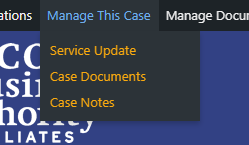
When editing an application, a “Manage This Case” menu will appear (screenshot below):
- Service Update – Start the process of allocating spending for the case.
- Case Documents – Add or manage documents for this case.
- Case Notes – Add or manage notes for this case.
Manage Documents
Lists uploaded files for all applications. Click “Edit” at the end of a row to upload or view files for an application.
Admin Area (Back side of the site)
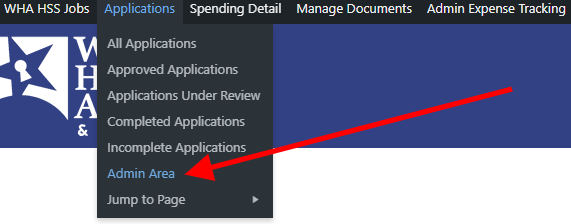
At the very top of the screenshot below, note these 2 options in the horizontal menu of “filters”.
- Starred – Lists Replaced Applications.
(The system uses the star to mark incomplete applications as replaced, after the client submits an updated application. - Entry Revisions – Each time a change is made to an application, the previous version from before the change is retained here.
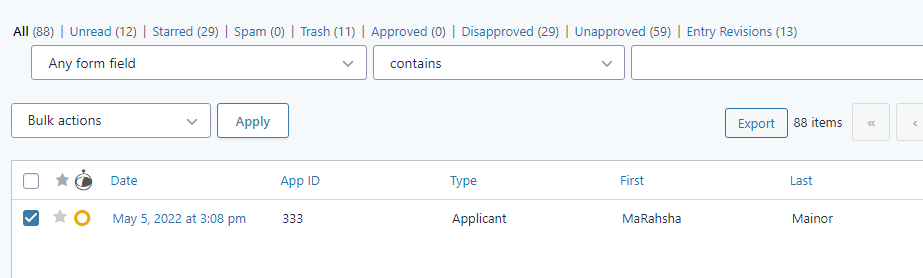
How to send email templates to clients.
Note the “Bulk Actions” dropdown menu (screenshot below).
If you need to send a link to a client so that they can upload documents* or complete an unfinished application, check the box next to their application, then select “Resend Notifications”.
* Applicants can optionally upload documents when first submitting their applications, and a link to upload more documents is included in their email confirmation. However, this wasn’t the case before yesterday for non-agency and non-apartment applicants.
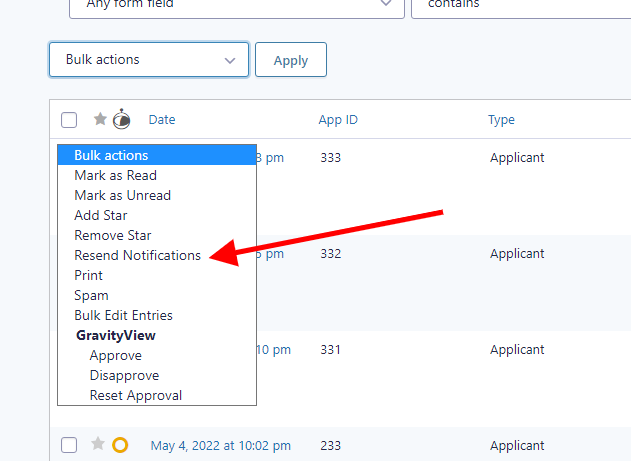
After choosing Resend Notifications from the menu, click the “Apply” button to the right of the dropdown.
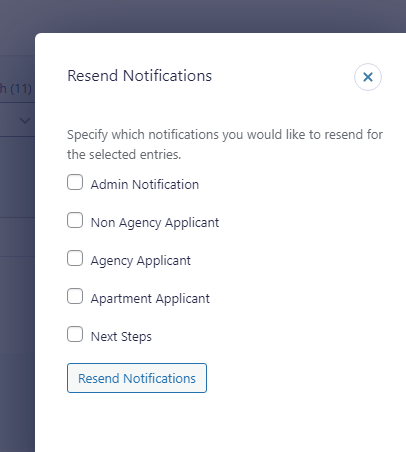
These options shown below will appear.
- To resend the confirmation containing the link to upload documents, choose “Non Agency Applicant”, then click the Resend Notifications button.
- To resend the notification containing the link to fill out the rest of a first-page-only application, choose “Next Steps”, then click the Resend Notifications button.
Unauthorized
You are not authorized to view this page.